
How to crop an image into a circle
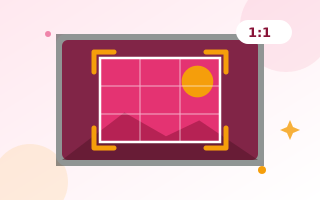
- Drop your photo onto the box above. The circle crop is already switched on.
- Drag the circle to your face or logo, and drag the corners to resize it.
- Click Crop & download to save a round PNG with a transparent background.
Where to use round images
- Profile pictures for websites, email signatures and CVs.
- Team photos on an “About us” page.
- Round logos and badges for presentations.
Tips
Leave a little space around the face so it does not look cramped. For a clean look, first remove the background with the background remover, then crop into a circle. Make the file smaller for the web with the image compressor.
Frequently asked questions
Why is the image saved as PNG?
PNG supports transparency, so the corners outside the circle stay transparent instead of white.
Is my photo uploaded?
No. Cropping happens in your browser.
Can I get a square crop instead?
Yes. Untick Circle crop and choose 1:1 for a square.