
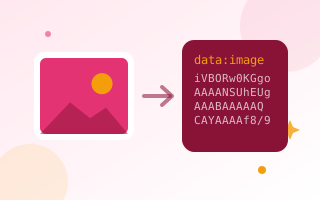
What is Base64 image encoding?
Base64 turns the binary data of an image into plain text. That text can be placed directly in your code as a data URI, such as data:image/png;base64,iVBORw0…. The browser displays it like a normal image, without loading a separate file.
How to convert an image to Base64
- Drop an image onto the box or click to choose one.
- Choose the output you need: Data URI, Base64 only, an HTML <img> tag or a CSS background.
- Click Copy and paste the code into your project.
When to use Base64 images
- Small icons and logos in HTML email templates, where external images are often blocked
- Tiny images inside CSS files to save an HTTP request
- Images inside JSON APIs or single-file HTML documents
- Placeholders and low-quality image previews
When not to use it
Base64 makes the data about 33% larger than the original file, and embedded images cannot be cached separately by the browser. For photos and anything over a few kilobytes, a normal image file is faster. Shrink your image first with the image compressor. To encode or decode plain text, use the Base64 encoder and decoder.
Output formats explained
- Data URI:
data:image/png;base64,iVBOR…. Use anywhere a URL is accepted. - Base64 only: the raw encoded string, for JSON APIs and databases.
- HTML <img>: a complete image tag you can paste into a page or email template.
- CSS background: a ready
background-image: url(…)declaration.
Example uses
- HTML emails: embed a small logo or icon so it shows even when external images are blocked (test in your email clients first).
- Single-file HTML: reports, prototypes and offline pages that must work without extra files.
- CSS sprites and icons: tiny UI icons inlined in a stylesheet.
- APIs: sending an image inside a JSON request body.
- Placeholders: tiny blurred previews for lazy-loaded images.
Size considerations
Base64 represents every 3 bytes as 4 characters, so encoded data is about 33% larger than the original. Embedded images also cannot be cached separately by the browser. As a rule of thumb, only embed images under 5–10 KB. For anything bigger, host the image as a normal file. Shrink images before encoding with the image compressor.
Decode Base64 back to an image
To view a Base64 image, paste the full data URI into your browser’s address bar and press Enter. To decode text rather than images, use the Base64 encoder and decoder.
Frequently asked questions
Does Base64 make images bigger?
Yes. Base64 text is about 33% larger than the original binary file, so it is best for small images.
Which image formats are supported?
Any format your browser can open, including PNG, JPG, GIF, WebP, SVG and ICO.
Can I use Base64 images in emails?
Many email clients support them, but some, such as Gmail on the web, block data URIs. Test before sending.
Is my image uploaded?
No. The conversion is done in your browser.