
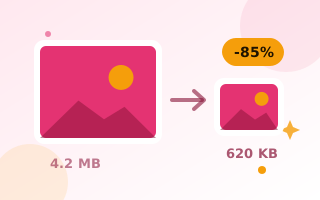
How to make PNG files smaller
- Drop your PNG files into the box above.
- Leave the output on Same as original to get a smaller PNG. Choose Auto (smallest file) instead if you are happy with whichever of PNG or WebP is smaller.
- If the image is wider than it needs to be, set a maximum width, for example 1600 px.
- Download the compressed files.
Why PNG files are so big
PNG is a lossless format. It stores every pixel exactly, which is perfect for sharp graphics but creates big files for screenshots and photos. PNG has no “quality” setting, so this tool uses colour reduction instead: it picks the best 256 colours for your image and saves it as a palette PNG (the same technique TinyPNG and pngquant use). Screenshots, logos and graphics usually shrink by 50–80% and look the same.
Your options
- Smaller PNG (Same as original): keeps the .png format and transparency. Works everywhere PNG is accepted.
- WebP: also keeps transparency and is best for photos on websites. Auto picks it when it is smaller.
- Resize: a 3000 px screenshot shown at 1000 px wastes bytes. Set a max width.
- JPG: smallest for photos, but transparency becomes white. See PNG to JPG.
Keep PNG format?
If you must keep the .png extension, for example for a platform that accepts only PNG, leave the output on “Same as original”. To shrink it even more, also set a maximum width. For conversion only, try PNG to WebP.
Frequently asked questions
Can PNG be compressed without losing quality?
PNG is lossless, so this tool reduces the image to its best 256 colours. For screenshots, logos and graphics the result looks the same while the file is usually 50–80% smaller. For photos saved as PNG, WebP or JPG gives smaller files.
Will my transparent background be kept?
Yes. PNG and WebP output both keep transparency, including soft edges. Only JPG output turns transparency white.
Why did my PNG get only slightly smaller?
Photos saved as PNG have too many colours to shrink much as PNG. Choose WebP or JPG, or set a smaller maximum width. If the result would be bigger, the tool keeps your original file.