How to Convert JPG to PDF on Your Phone (Android & iPhone)
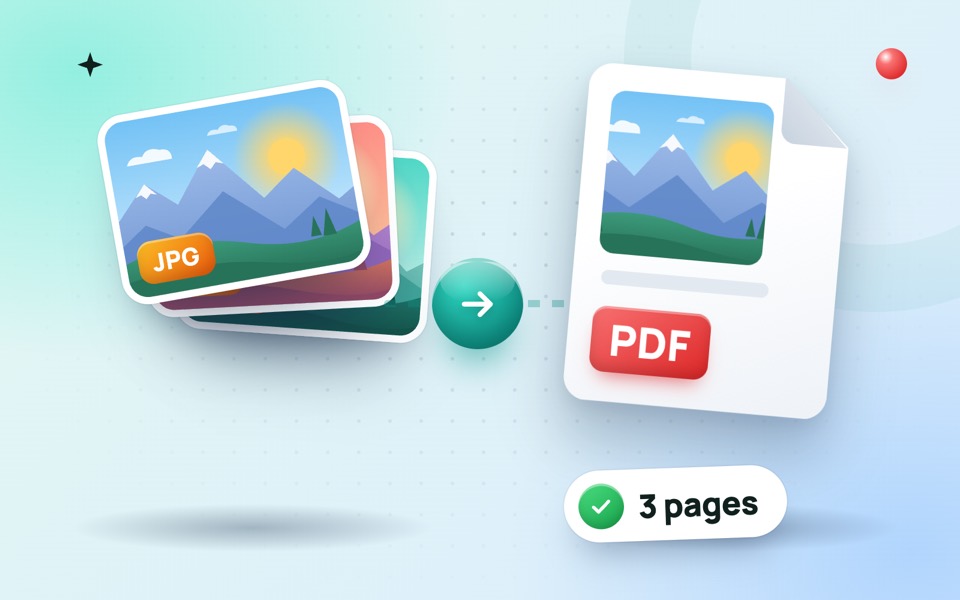
A college form wants your documents as one PDF. Your landlord asks for a scanned copy of your ID. The office needs this month’s receipts by email. In every case you have photos on your phone, and someone wants a PDF. This guide shows you how to turn JPG photos into a single, tidy PDF on Android or iPhone in about a minute, for free, without installing an app and without uploading your documents to a stranger’s server.
What you need
- A phone with a modern browser: Chrome on Android, or Safari or Chrome on iPhone.
- The photos you want in the PDF, saved in your gallery. Screenshots and PNG or WebP images work too.
- That is all. There is no account, no watermark and no limit on the number of pages.
Step by step: JPG to PDF on your phone
- Open the free JPG to PDF converter in your phone’s browser.
- Tap the box and choose your photos. On most phones you can select several at once by long-pressing the first photo and then tapping the others.
- Check the order. Each photo becomes one page. Use the ↑ and ↓ buttons to move a page, ✕ to remove one, or Sort by name if your files are numbered.
- Choose the page size. A4 is the standard in Pakistan, India, the UK and most of the world; pick US Letter for the United States and Canada, or Same as image for a PDF without white borders.
- Pick a quality. Balanced suits most documents; use Smallest file for online forms with a size limit.
- Tap Convert to PDF, then Download PDF. The file is saved to your Downloads folder (Android) or the Files app (iPhone).
The tool shows the size of the finished PDF before you download it, so you can try another quality setting straight away if it is too big.
Take photos that make a clean PDF
Your phone camera is a good scanner if you follow a few simple rules:
- Use daylight. Stand near a window instead of using the flash, which leaves a bright glare in the middle of the page.
- Shoot from straight above. Hold the phone parallel to the page so the text does not lean or get smaller at one end.
- Use a dark, plain surface. A white page on a dark table is easy to crop and looks sharp.
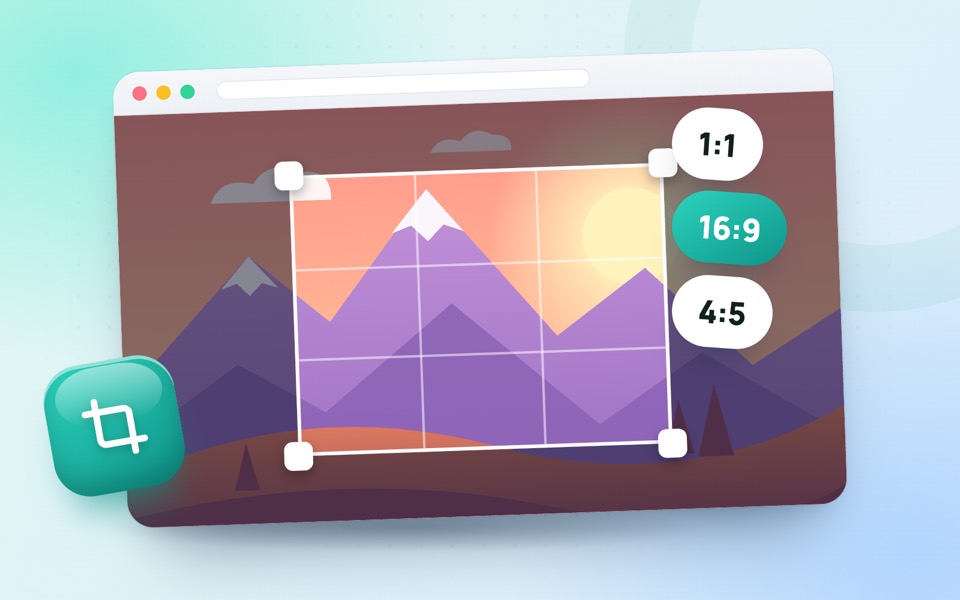
- Fill the frame. Get close enough that the page covers most of the photo, then crop away the rest with the image cropper.
- Check that it is readable. Zoom in on the smallest text before you move on. If you cannot read it, neither can the person receiving your PDF.
How to get under a file size limit
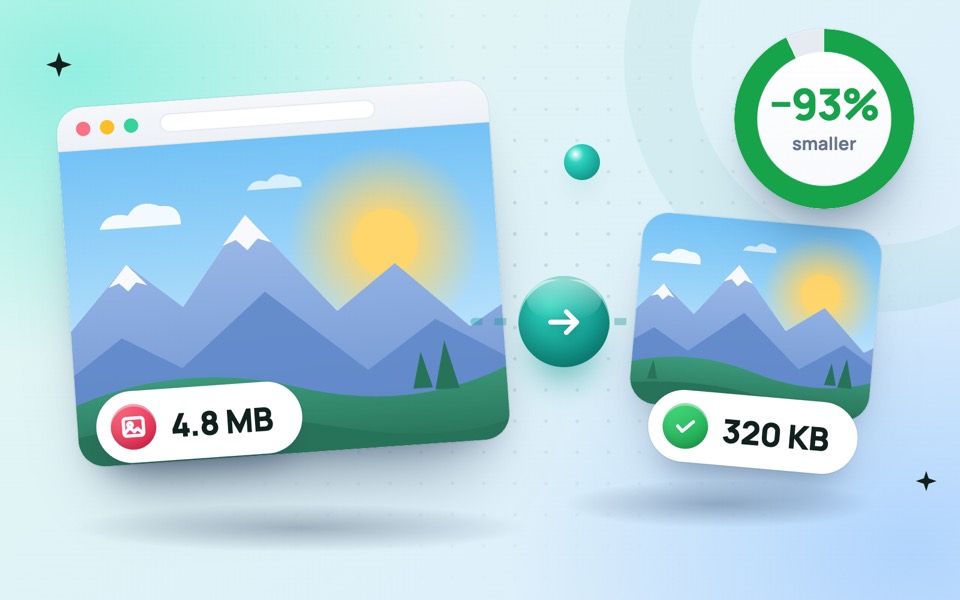
Many admission, job and government portals only accept PDFs under a limit such as 200 KB, 500 KB or 1 MB. If your PDF is too large:
- Convert again with Smallest file quality. For text documents this alone is usually enough.
- Remove pages the form does not need, such as blank backs or duplicate photos.
- For very strict limits, shrink the photos first with the compress image to 100 KB tool, then convert them to PDF.
Avoid shrinking so far that text becomes blurry. A rejected, unreadable document costs more time than a slightly larger file. Our guide on reducing photo size for online forms explains common limits in more detail.
Common uses
- ID cards and certificates: put the front and back of a CNIC, Aadhaar card or driving licence on two pages of one PDF.
- Assignments and notes: photograph handwritten pages and submit them as a single file.
- Receipts and bills: collect a month of receipts for an expense claim.
- Screenshots: turn payment confirmations, tickets or chat records into one document with the image to PDF converter, which handles PNG screenshots as well.
Can I do it without a website?
Both Android and iPhone have a built-in workaround through the print menu. On Android, open a photo, choose Share or the menu, then Print, and select Save as PDF as the printer. On iPhone, select photos in the Photos app, tap Share, then Print, and save the preview as a PDF. The exact menus vary by phone model and version.
These methods work for one or two photos, but they give you little control over page order, margins and file size. For several pages, or when a form has a size limit, a dedicated converter is faster and more predictable.
If something goes wrong
An iPhone photo is skipped
iPhones save photos as HEIC by default, and not every browser can open that format. Take a screenshot of the photo and use the screenshot instead, or set Settings → Camera → Formats → Most Compatible so that future photos are saved as JPG.
The pages are in the wrong order
Phones do not always keep the order in which you tapped the photos. Rearrange them with the arrow buttons before you tap Convert, or rename the files 1, 2, 3 and use Sort by name.
I cannot find the downloaded PDF
On Android, open the Files app and look in Downloads. On iPhone, open the Files app and check Downloads under On My iPhone or iCloud Drive.
Is it private?
Yes. Most free converters upload your photos to their servers. Ours does not: the PDF is created inside your browser, on your own phone. That makes it a safer choice for ID cards, bank statements and other personal documents.
Frequently asked questions
Is the JPG to PDF converter free?
Yes. It is free, with no sign-up, no watermark and no limit on the number of photos.
How many photos can I put in one PDF?
There is no fixed limit. Each photo becomes one page; very long documents simply need a little more memory on your phone.
Can I add PNG screenshots too?
Yes. PNG, WebP, GIF and BMP images work as well, and you can mix formats in the same PDF.
Will the PDF work on a computer?
Yes. It is a standard PDF that opens in any PDF reader, browser or email app on Windows, Mac, Android and iPhone.