How to Compress a Video for WhatsApp & Email (Free, No App)
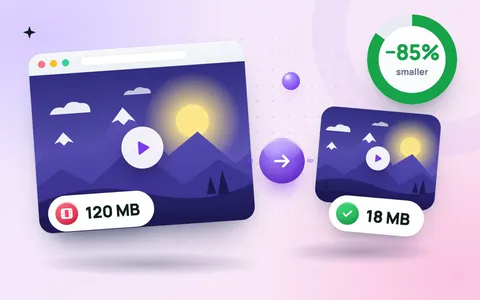
Phone videos are huge. One minute of 4K video can be more than 300 MB, which is too big to attach to an email and slow to send on WhatsApp, especially on mobile data. The good news: you can shrink a video by 70–90% and still keep it sharp on a phone screen. This guide shows how to compress a video for WhatsApp and email for free, without installing an app, using the online video compressor.
Video size limits you need to know
| Where you send it | Limit | Good target size |
|---|---|---|
| Gmail attachment | 25 MB | under 24 MB |
| Outlook attachment | 20 MB | under 19 MB |
| WhatsApp video | re-compressed by WhatsApp; up to 2 GB as a document | 16–50 MB sends fast |
| Online forms and portals | often 10–50 MB | check the form |
Gmail sends anything bigger than 25 MB as a Google Drive link instead of an attachment. WhatsApp accepts large files, but it re-compresses them itself, which often makes them blurry. If you compress the video first at a sensible quality, it uploads faster and usually looks better at the other end.
How to compress a video online (free, no upload)
- Open the free video compressor on your phone or computer.
- Drop your video into the box, or tap to choose it. MP4, MOV and WebM work.
- Choose Target file size and type the size you need, for example 24 MB for Gmail. Or choose a compression level: Balanced is a good default.
- Pick a resolution. 720p looks sharp on phones and makes the file much smaller than 1080p or 4K.
- Click Compress video, keep the tab open until it finishes, then download your smaller video.
The video is processed inside your browser, so it never leaves your device. That matters for family videos, ID recordings and anything private.
Best settings for WhatsApp
- Resolution: 720p. WhatsApp shows videos on small screens, so 4K is wasted space.
- Size: aim for 16–50 MB for a clip of a few minutes. Smaller files send faster and use less mobile data for both of you.
- HD option: when you send, tap the HD button in WhatsApp to keep more of the quality you compressed for.
- Very long videos: send them as a Document in WhatsApp. Documents are not re-compressed, so the quality stays exactly as you saved it.
Best settings for email
- Set the target size just under the limit: 24 MB for Gmail, 19 MB for Outlook.
- For long recordings, lower the resolution to 480p. Speech and screen recordings still look clear.
- If the video is still too big, trim it first, or share only the part that matters.
Tips to keep quality high
- Lower the resolution before the quality. Going from 4K to 720p saves far more space than squeezing quality, and it looks cleaner.
- Remove the sound only if you do not need it. Turning off Keep sound makes the file slightly smaller.
- Need only the audio? Save the soundtrack as a small MP3 with the video to MP3 converter.
- Need a short loop? Turn a few seconds into a GIF with the video to GIF converter.
- Sending photos too? Shrink them with the image compressor before you attach them.
Frequently asked questions
How do I compress a video for WhatsApp without losing quality?
Compress it to 720p at a balanced quality, then send it with WhatsApp's HD option, or as a document. You lose some file size but almost no visible quality on a phone screen.
How can I send a video larger than 25 MB by email?
Compress it with a target size of 24 MB. If that is still not enough, lower the resolution to 480p or trim the video, or share it as a cloud link instead.
Is it safe to compress a video online?
With the ToolMaxo video compressor, yes. The video is compressed in your browser and is never uploaded to a server.
Why does compressing a video take a while?
The video is re-encoded on your own device, so it takes roughly as long as the video plays. Keep the tab open until it finishes.