YouTube Thumbnail Size & How to Make One That Gets Clicks
Before anyone watches your video, they see two things: the title and the thumbnail. On a phone, the thumbnail is the biggest part of that decision. This guide covers the correct YouTube thumbnail size, the rules YouTube sets, and a simple, free way to make a thumbnail that gets more clicks, with no design software.
YouTube thumbnail size and rules
| Setting | Requirement |
|---|---|
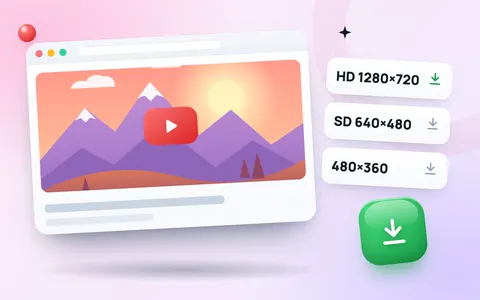
| Recommended size | 1280 × 720 pixels |
| Minimum width | 640 pixels |
| Aspect ratio | 16:9 |
| File size | under 50 MB |
| File type | JPG or PNG |
A thumbnail that is not 16:9 gets black bars or is cropped. One that is too small looks blurry on TVs and large screens. The YouTube thumbnail resizer is preset to 1280 × 720 and crops to fill, so any photo or screenshot fits exactly.
Can’t upload a custom thumbnail?
New channels sometimes cannot upload their own thumbnail. YouTube asks you to verify your account first. In YouTube Studio, open Settings → Channel → Feature eligibility and complete the phone verification. After that, the Upload thumbnail option appears under each video’s details.
How to make a thumbnail for free
- Pick the best frame or photo. A clear face with a strong expression, or the finished result of your video, works best. Take a screenshot while the video plays if you need to.
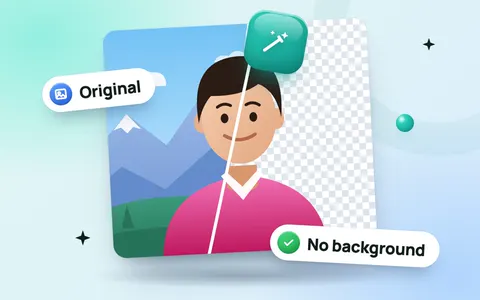
- Cut out the subject (optional). Use the background remover to cut yourself or the product out, then place it on a bright, simple background.
- Add three to five big words. Use any free editor such as Canva or your phone’s photo editor. Short words in a thick font are readable even on small screens.
- Resize to 1280 × 720. Open the thumbnail resizer, drop your image in and download it as JPG at high quality.
- Check the file size. A smaller file uploads faster: lower the quality slightly or use the image compressor.
- Upload it in YouTube Studio under Details → Thumbnail.
Thumbnail tips that increase clicks
- Faces and emotion: a close-up face showing surprise, joy or curiosity stands out in the feed.
- Few words, big text: never repeat the whole title. Add what the title does not say, like “50 KB in 10 sec”.
- High contrast: bright subject on a darker or plain background. Test it on both YouTube’s light and dark themes.
- Keep the bottom-right corner clear: YouTube puts the video length there.
- Be consistent: the same colours, font and layout on every video make your channel easy to recognise.
- Match the promise: a thumbnail that misleads gets clicks but loses viewers fast, which hurts the video.
Thumbnails for YouTube Shorts
Shorts are vertical (9:16), and on phones YouTube usually shows a frame from the Short rather than a separate thumbnail. In the YouTube app you can choose which frame to use as the cover while uploading. Make sure the first second of your Short looks clear and has readable text. A punchy title helps too: try the Shorts title generator.
Quick checklist before you upload
- 1280 × 720 px, 16:9, JPG or PNG
- Readable on a phone at small size
- Bottom-right corner free
- Thumbnail and title tell one clear story; get title ideas from the YouTube title generator
- Tags added with the YouTube tag generator
Frequently asked questions
What is the YouTube thumbnail size?
1280 × 720 pixels in a 16:9 ratio, at least 640 pixels wide, as a JPG or PNG file under 50 MB.
Why can’t I add a custom thumbnail on YouTube?
Your account probably needs to be verified. In YouTube Studio, go to Settings, then Channel, then Feature eligibility, and verify with your phone number.
Why does my thumbnail look blurry?
It is likely smaller than 1280 × 720 or heavily compressed. Start from a large, sharp image and save it as a high-quality JPG.
Can I change a thumbnail after uploading?
Yes. Open the video in YouTube Studio, go to Details and upload a new thumbnail at any time.